WordPress is a powerful, free, open-source Content Management System (CMS) used to build and manage all types of websites, from simple blogs and portfolios to complex e-commerce stores, without needing extensive coding.
You can Upload your site logo in Theme editor or in wordpress setting but it may not show in search engine results. Your favicon may show in tabs that doesn’t guarantee in Google Search results.
Follow the steps carefully
1. Generate Your Favicon
You need favicon in multiple dimensions for different devices and browsers
Visit this website and download your favicon zip favicon-maker
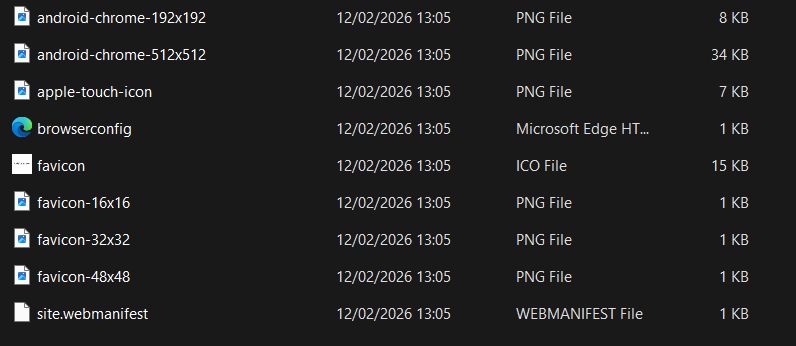
After download extract your downloaded zip, You’ll Have something similar to this after extraction
2. Go to Your Root Folder of Website
There are multiple ways to get to the root folder; it depends on whether your site is hosted on a VPS, shared hosting with cPanel, or accessed via FTP, since each setup has a different method and directory structure for locating the main web directory.
Usually most wordpress hosting gives cPanel, It is not mandatory to have cPanel, You just have to find your root folder.
If you’re in the correct root folder, you’ll usually see files like:
index.php
index.html
.htaccess
wp-config.php
wp-content
wp-admin
Another Way to check if its root folder is by
- Create a text file eg. test.txt
- Inside the file, Write something
- Save it
- Open https://yourdomain.com/test.txt
If it shows the text you written then its working, It’s the root folder
If it says 404 → you’re not in the correct directory.
3. Upload your Favicons in Root Folder
Before uploading site.webmanifest, Edit your site name and short name in it and save it.
After locating root folder successfully, Upload all the files in the Zip.
Don’t upload Zip or the folder itself, upload all the files inside the zip.
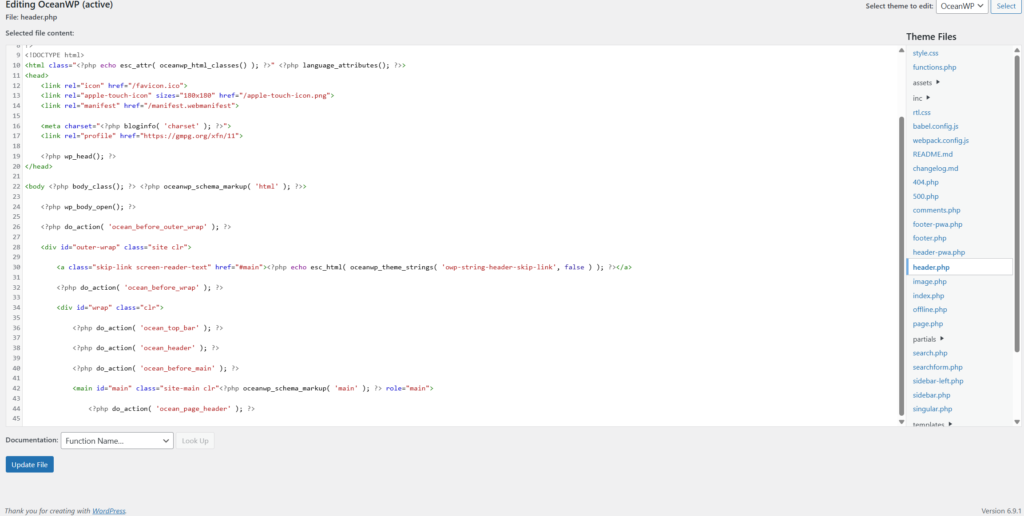
4. Open Header Editor in WordPress
- Open WordPress
- Click Theme Editor in Appearance
- Select header.php in theme files to edit header
5. Paste Code Below Head Element
Paste the code below the <head> element in header.php
<link rel=”icon” type=”image/x-icon” href=”/favicon.ico”>
<link rel=”icon” type=”image/png” sizes=”32×32″ href=”/favicon-32×32.png”>
<link rel=”icon” type=”image/png” sizes=”16×16″ href=”/favicon-16×16.png”>
<link rel=”apple-touch-icon” sizes=”180×180″ href=”/apple-touch-icon.png”>
<link rel=”manifest” href=”/site.webmanifest”>
<meta name=”msapplication-TileColor” content=”#ffffff”>
<meta name=”theme-color” content=”#ffffff”>
After pasting click update file
6. Re Index Your Page in Google Search Console
- Open Google Search Console
- Click URL inspection
- Inspect your website’s URL
- Do a live test url
- Click View tested page
- It will show your site’s crawled html, You shall check if the pasted html code for favicons is present
- Once Confirmed, Please click Request Indexing option
If you have followed the steps correctly, google will show your site favicons in search results within 2 weeks. I personally had difficulty when i started the site, Once i done the above instructions my site favicons started showing in search results within 3 days. If you have any questions, please use contact me to ask your doubts.